Script Variants
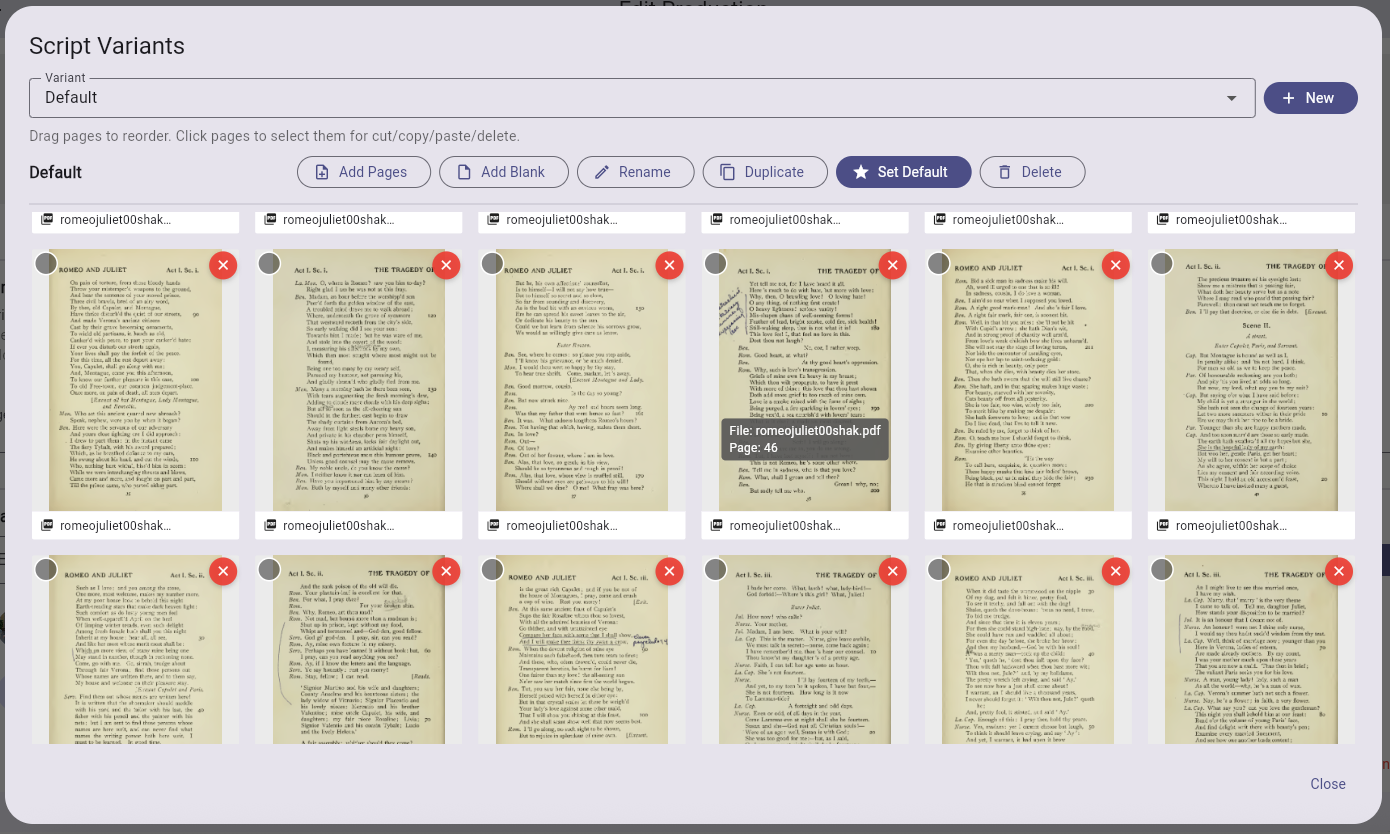
Variants let you create alternative page orderings of your script without re-uploading the PDF. This is useful for managing different versions of a script — for example, a stage manager's prompt book vs. a director's cut.
What is a variant?
A variant is a named sequence of pages. Every production starts with a Default variant containing all pages from the uploaded PDF in order. You can create additional variants with different page selections and orderings.
Creating a variant
- Open the variants manager from the production edit screen
- Click New
- Enter a name for the variant
- Add pages from existing PDFs, upload a new PDF, or insert blank pages
Managing pages in a variant
Reorder pages
Drag and drop pages within the variant grid to rearrange them.
Add pages
- From a new PDF — upload an additional PDF to add its pages to the variant. Depending on your company's plan, the PDF can be processed via cloud import or on your device.
- Blank pages — insert blank pages at any position
Select and move pages
- Click to select individual pages, or select multiple pages with checkboxes
- Cut / Copy / Paste — move or duplicate selected pages
- Delete — remove selected pages from the variant (the underlying page files are not deleted)
Duplicate a variant
Creates a copy of the variant with a new name. All page references are duplicated, but the actual pages are shared.
Set as default
Mark a variant as the one that loads when the production is opened.
Delete a variant
Removes the variant and its page ordering. The underlying page files are not deleted.
How variants relate to annotations
Annotations (highlights, cues, notes, tags, blocking) are attached to pages, not variants. If the same page appears in two variants, it shows the same annotations in both.
Tip
This means you can reorganize pages across variants without losing any annotation work. Annotations follow the page, not the variant.