Highlights
Highlights are colored overlays you place on script pages to mark important areas. They're the most basic annotation type in ScriptMagic — use them to mark lines, flag sections, add text notes, or redact content.
Creating a highlight
- Make sure your desired layer is selected as the active layer
- Click and drag on the script page to draw a rectangular highlight
- The highlight is created with the color and style of your active layer
Highlight types
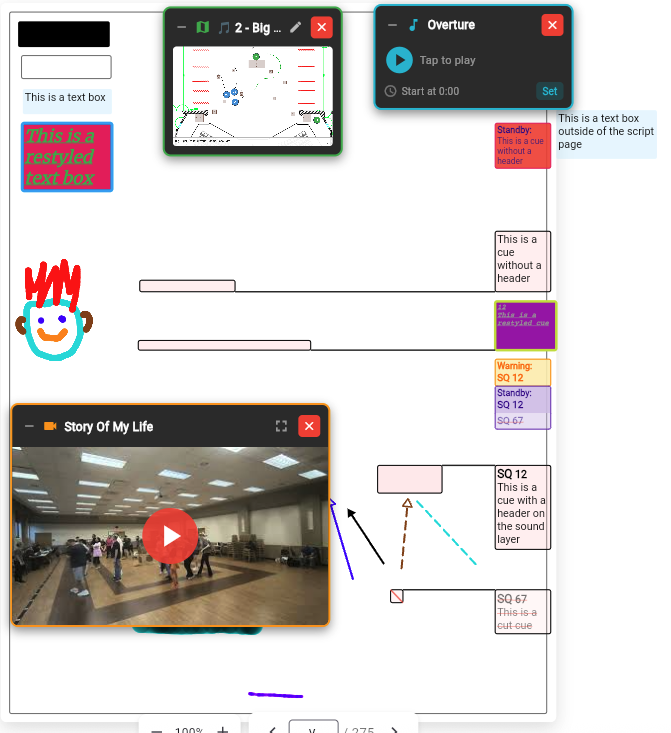
- Basic — A colored rectangle. The most common type for marking lines, sections, or areas of interest.
- Text — A highlight that contains editable text. Double-click to type inside it. See also Notes.
- Blackout — A solid black rectangle for redacting or covering content.
- Whiteout — A solid white rectangle with a light border for covering content.
- Warning / Standby — Specialized boxes for cue warnings and standbys. These auto-layout to avoid overlapping and suppress duplicate headings when stacked. Colors and styling are configured globally by site admins.
- DCA marker — A circular numbered marker (1–16) used for sound cue assignments. See Sound DCA Layers.
Editing a highlight
- Move — Click and drag a highlight to reposition it
- Resize — Select a highlight, then drag the corner handles to resize
- Edit text — Double-click a text highlight to open the inline text editor
- Edit properties — Click the edit icon on a selected highlight to change its settings
Text styling
Text highlights support:
- Font family and font size
- Bold, italic, and underline
- Text color
- Background color and opacity
Tip
Text styling is configured per layer, so all highlights on the same layer share a consistent look by default. You can customize this in layer styling.
Per-highlight format overrides
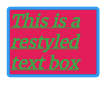
Individual highlights can override their layer's default styling. Click the format button on a selected highlight to open the format dialog, where you can adjust:
- Color and opacity — override the layer's highlight color
- Border — toggle a border and set its color and strength
- Text color, font, and size — for text highlights and cue text boxes
- Bold, italic, underline — text formatting overrides
Overridden properties are visually distinguished in the dialog. A badge shows the number of active overrides. You can reset individual properties or all overrides at once.
Deleting a highlight
Select a highlight and click the red X button, or press Delete/Backspace while it's selected.
Permissions
You can only edit or delete highlights on layers you have edit access to. Highlights on read-only layers can be viewed but not modified. See Understanding Layers for details on layer permissions.